
 28-08-2026
Embed Google Forms on Your Website
Google Forms is a popular way to create, manage, and analyze forms. In this blog post, let’s take a look at exactly what you can do with it and how you can easily embed the form into your website.
Google Forms
You’ve probably come across Google Forms before, whether in your personal life or in a business context. It’s one of the most popular ways to create a survey or a form. All you need is a Google account—which most people already have. And you can share it easily and securely using the link you receive.
Thanks to the built-in features, you don’t have to program anything yourself and can create a clear and professional form in no time.
Google Forms also opens up countless possibilities. You can easily set up different question types—from multiple-choice questions and rating scales to free-text fields and file uploads. Want to offer a more personalized experience? Then you can add logic so that respondents are automatically directed to the right follow-up question based on their answer. Of course, you can customize the colors and a cover image to match the look and feel of your company or project.
When visitors fill out the form, Forms immediately provides you with valuable insights. In the dashboard, you can view the results directly in clear, easy-to-read charts. Want to process the data further or manage it administratively? Then connect the form directly to a Google Sheets spreadsheet. This way, all submissions are automatically collected in a spreadsheet, so you can immediately filter, analyze, or export the data.
Google Forms takes all the work off your hands when it comes to collecting and analyzing data. The only thing missing now is a central location where your visitors can conveniently fill out this form. By embedding the form directly on your own website, you don’t have to redirect visitors via a separate link and you keep all the traffic neatly on your own domain. In the following section, we’ll show you step by step how you can easily embed a Google Form into your website using HTML.
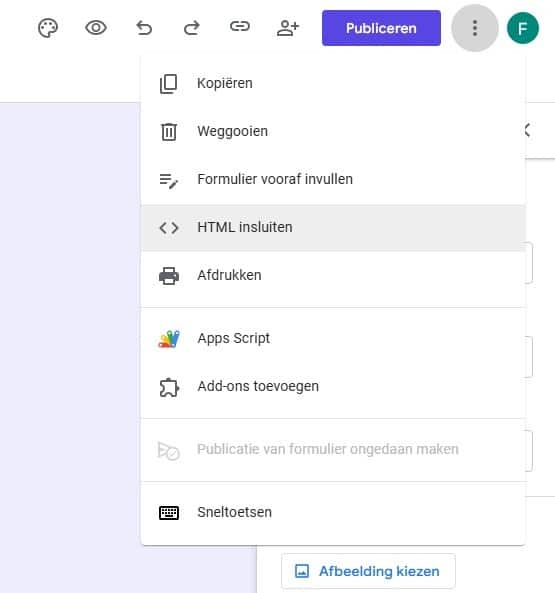
Embedding Google Forms into Your Website Using HTML
Once you’ve customized your Google Form to your liking, you can easily embed it into your own website using an iframe. Anyone with a little experience as a website administrator will be able to handle this, but for beginners, we’ll go into a bit more detail about these steps. In almost every content management system, iframes can be easily embedded—for example, by creating an empty HTML block in WordPress.
Once you’ve set up your Google Form to your liking, you can easily embed it into your own website using an iframe. This allows you to display the form directly on your own page.
To do this, follow these simple steps:
1. Copy the embed code: Open your form in Google Forms and click the purple “Send” button in the top-right corner. In the window that opens, select the tab with the embed icon (< >).
2. Set the format: Here you’ll immediately see the HTML code. If necessary, you can adjust the width and height in pixels beforehand. Then click “Copy.”
3. Insert into your CMS (e.g., WordPress): Open the page on your website where you want to display the form. Do you use WordPress? If so, add a new block and select “Custom HTML.” Paste the copied code here.
4. Save and test: Save the page and go to your website’s homepage. The form is now immediately visible and ready to use!
Do you want the form to always display properly on mobile devices? In the HTML code, change the value from “width="640"” to “width="100%"”. This way, the form automatically adjusts to your visitor’s screen size!
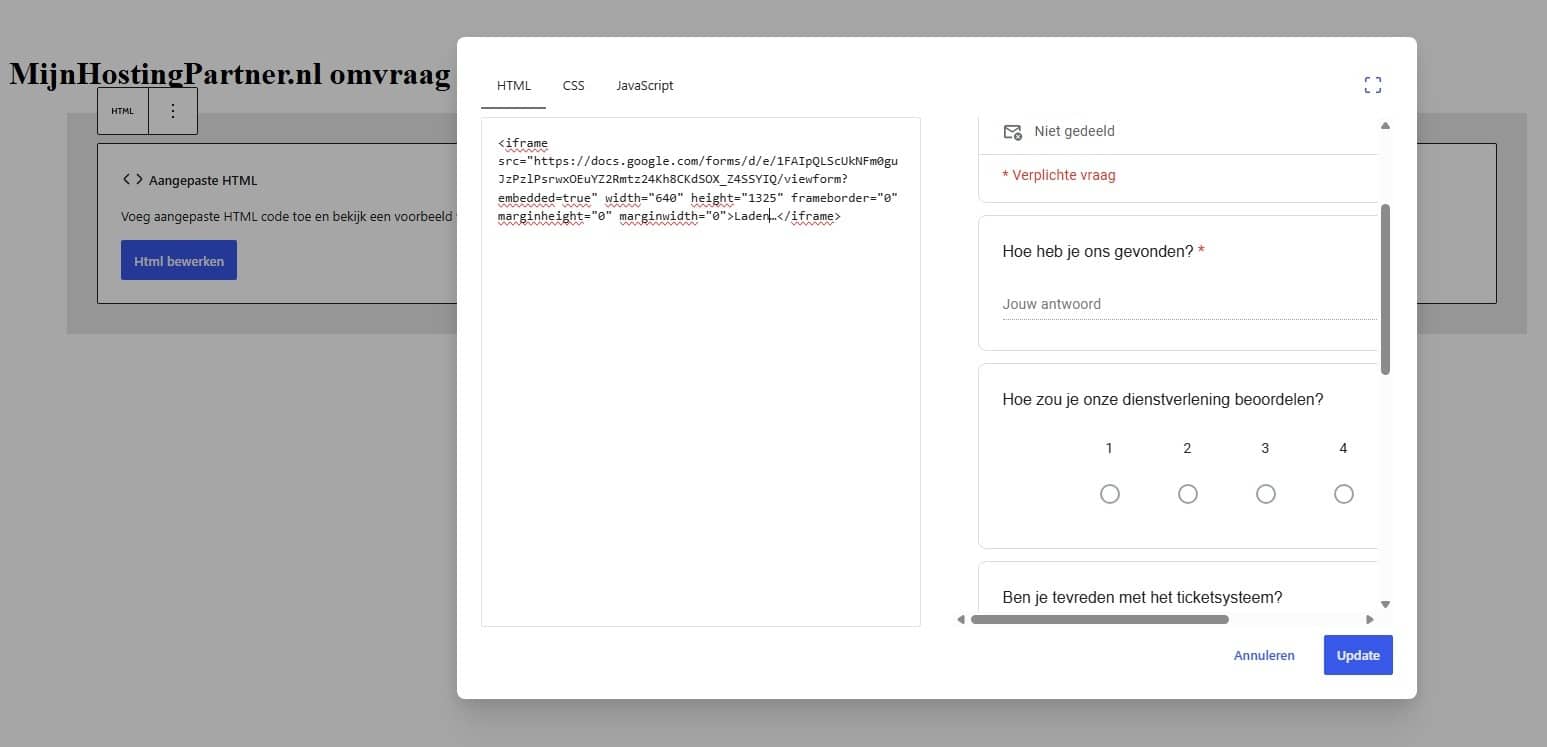
Embedding a Google Form on your website is a fast, efficient, and free way to interact with your visitors. Whether you’re collecting customer feedback, processing registrations, or conducting surveys, you’ll save yourself a lot of programming work while keeping track of everything via Google Sheets. By embedding the iframe directly into your page, you also keep all data traffic neatly on your own domain and within your trusted web hosting environment. Try it out on your website today and see how easy it is!
Check out our form and fill it out on the following demo page: