 30-10-2026
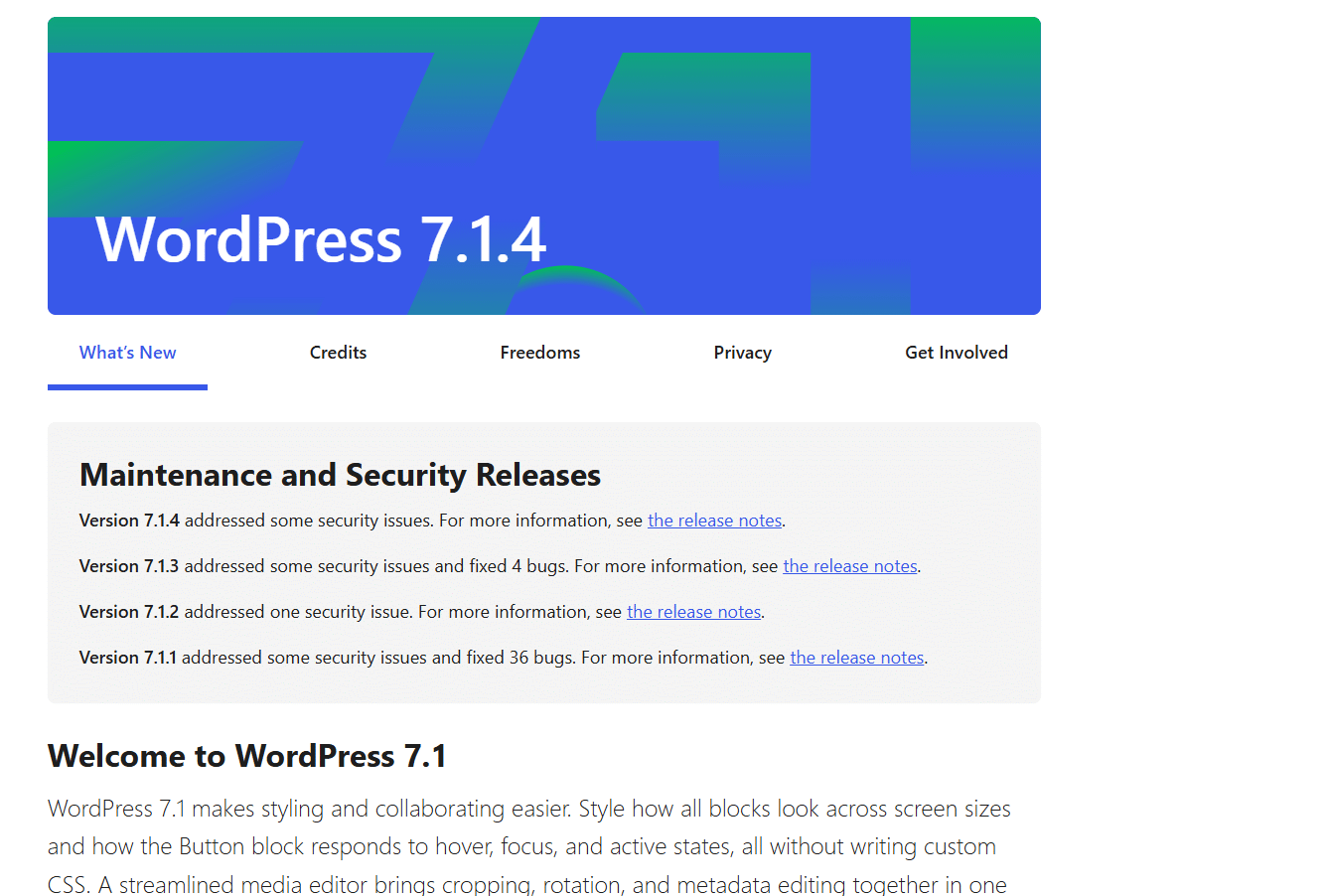
WordPress Update 7.1.4
WordPress released a new security update on Wednesday evening (Dutch time): WordPress 7.1.4. This is a major maintenance release that addresses several security vulnerabilities. Since this is a security update, it is recommended that you update your websites as soon as possible.
Here’s everything you need to know about this version, the security issues that have been fixed, and how to update your website.
What’s new in WordPress 7.1.4?
WordPress 7.1.4 is a targeted security and maintenance release that can be installed directly on your WordPress hosting. In addition to the security fixes, this is a so-called “short-cycle” release. The next major version is already planned: Version 7.2 is expected on December 8.
Key Security Fixes
This version addresses various vulnerabilities, particularly in the areas of cross-site scripting (XSS) and authorization checks. Some notable fixes:
Upgrade Process: A vulnerability in the upgrade process that could lead to remote code execution (RCE) during the update (reported by Umut Bayram).
Interactivity API & Blocks: Several stored XSS issues, including in the Interactivity API, the Categories block, the Playlist and Image blocks, and the Comment Pagination blocks.
Removal of Privacy Data: A vulnerability that allowed requests to remove privacy data to be exploited for stored XSS (reported by Anthropic).
Customizer & Logins: Fixed XSS issues related to selective refreshing of the Customizer and specially crafted usernames, as well as a fix that prevented unauthenticated users from viewing unpublished Customizer changesets.
Root Certificates: An update to the included root certificates due to the eMudhra revocation.
The WordPress Security Team would like to thank all external researchers and internal staff (including contributors from Awesome Motive, VietSunshine Cyber Security, and Anthropic) for responsibly reporting these vulnerabilities.
How do you update your WordPress site?
Fortunately, updating your site takes just a few moments:
1. Log in to your WordPress dashboard.
2. Go to “Updates.”
3. Click “Update Now.”
Have you enabled automatic background updates for your websites? If so, this process will usually start automatically for you. In that case, simply check under “Updates” to see if you’re using the latest version.
If the update via the WordPress admin panel isn’t working for your website—which is especially likely if it’s significantly out of date—you can perform the update manually as follows:
To be on the safe side, always create a current backup of your website and database via your control panel or a backup plugin before performing major updates.For more information about this version, visit the official WordPress 7.1.4 page.