
Categories
How can I set my ASP.NET version?
To select the ASP.NET version at MijnHostingPartner.de, you can do this easily via the customer panel.
Step 1: First log in to the customer panel under My account with the data you have selected.
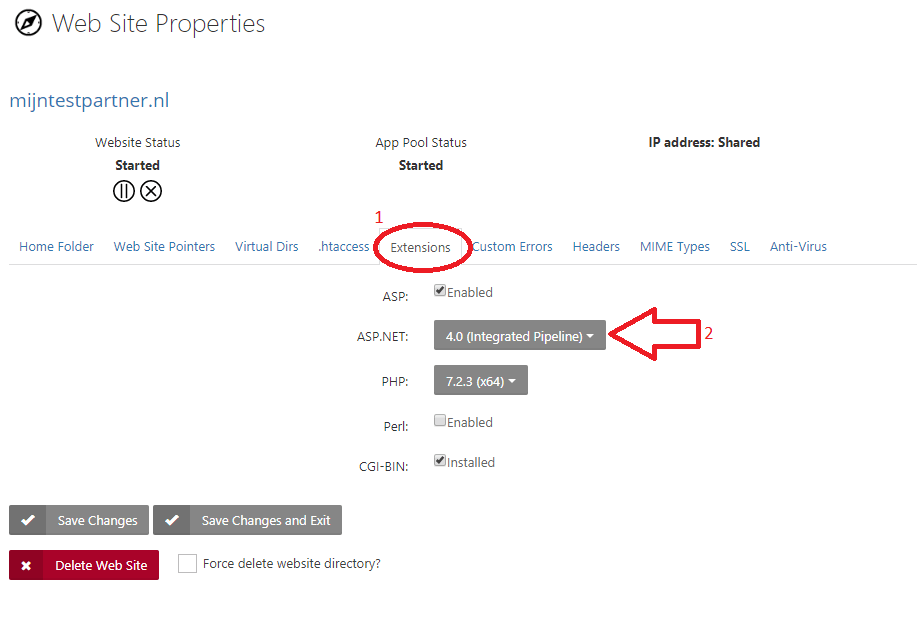
Step 2 Then navigate toMy products -> Click on the relevant serviceYou will then be taken to the following screen:
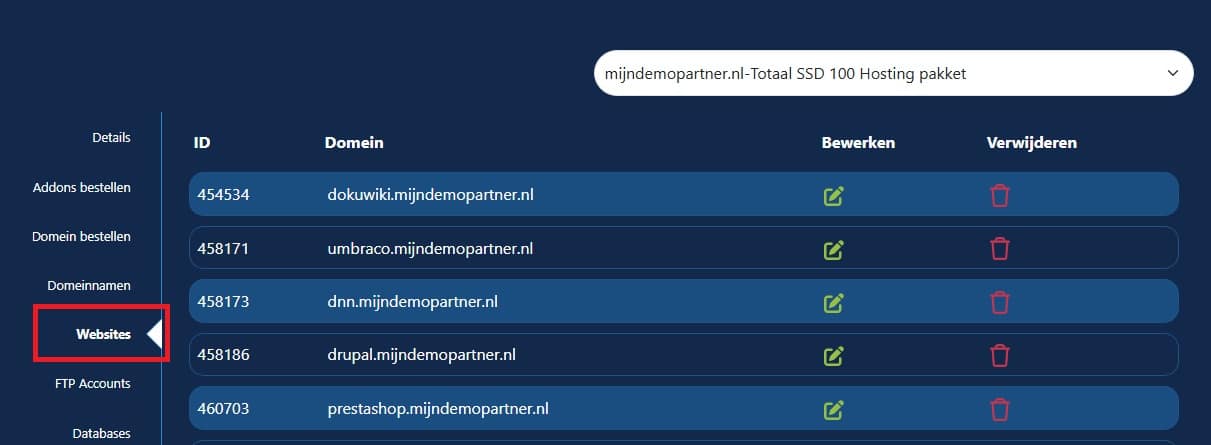
Step 3. here you can select the relevant website with the green edit icon. And then navigate to the Extensions tab.
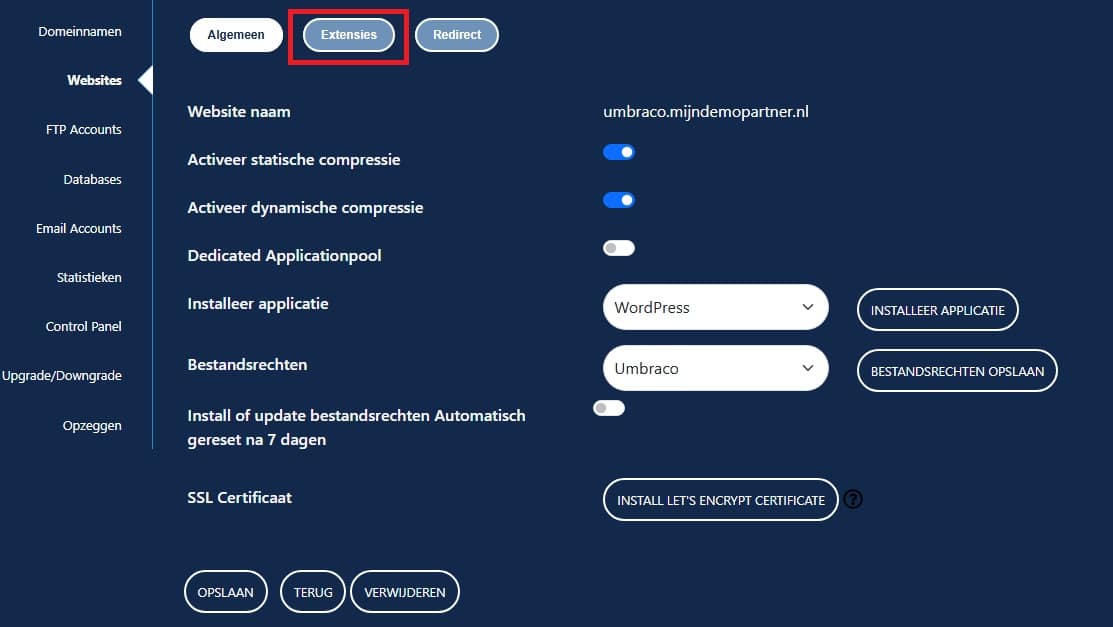
Step 4: Select the desired ASP.NET version and save it. This will be done in a few moments. Do not close this screen in the meantime.
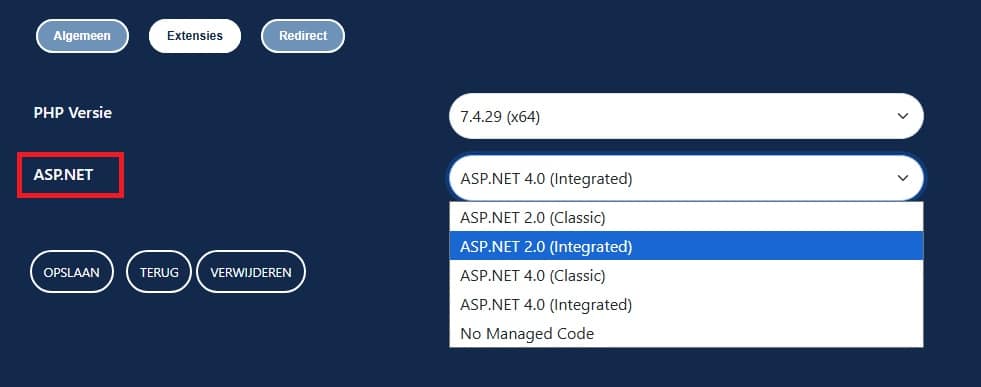
You will not see all the individual ASP.NET versions here. Only the main versions are displayed here. No Managed Code is the option that .NET (Core) users should select here. This will actually select the latest .NET versions that you can use. It depends on your package which versions are actually supported here.
Classic ASP is only available within the SSD 100 package. And we strongly recommend switching to .NET core.
The ASP.NET versions use their own application pool.
And this is how the ASP.NET version can be set up at MijnHostingPartner.nl.
- You can set your ASP.NET version in the following way:
- Log in to the Control Panel
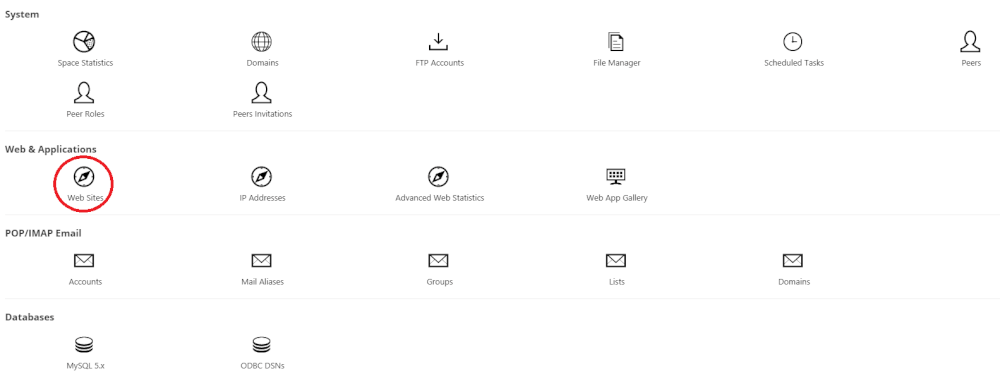
- Click on Websites
- Click on the relevant website
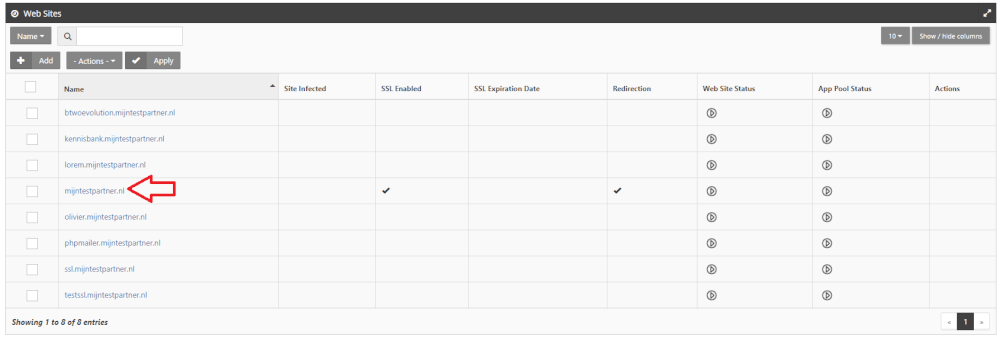
- Now go to the Extensions tab, here you can set your ASP.NET version