

 28-02-2026
Why is my WordPress website slow?
WordPress is unfortunately not known for being the fastest way to run a website, but with a little optimization work, the right hosting, and some homework, you can still make a WordPress website lightning fast. In this blog post, let's take a look at the steps you can take to make your WordPress website fly!
Take stock and take action
A WordPress website uses thousands of files, media, and other resources to ultimately create a website. So there are also many factors and causes that can lead to delays on a WordPress website. Before you take drastic measures, it makes sense to check the most common causes.
Start with the following steps.
Step 1. Which plugins are you using?
Plugins are one of the most useful features of WordPress, but they can also be the cause of many problems. This is because (in most cases) plugins are not maintained by WordPress itself, but by third parties and contributors to the ecosystem that WordPress has become. Not every plugin is therefore trustworthy or particularly useful for most websites and purposes.
A good rule to follow is to use no more than 8 plugins.
Deactivated plugins should be removed immediately and correctly if you are not using them, so that the plugins are always up to date. Take a critical look at your plugin list and remove those that you are not actively using.
Step 2. Which theme are you using? Is it up to date and reliable?
The theme has an important influence on your WordPress website and also on its speed. Check whether your theme is up to date and keeps pace with the latest updates from WordPress. If you find that your theme has not received any updates for a year, this is often a sign that it is no longer actively maintained. Check out other people's reviews and experiences and then decide whether it might be better to switch to a different theme.
Popular themes such as Astra or Neve are updated regularly and have the added advantage of offering a variety of starter templates. This often saves you a lot of work.
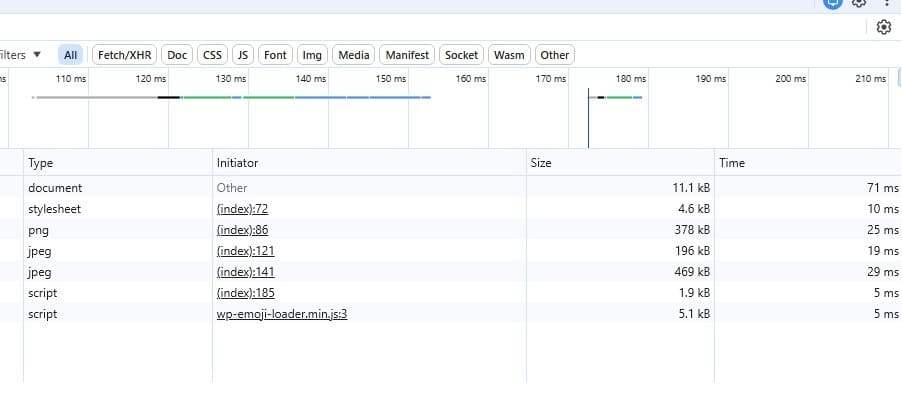
Step 3. Take a look under the hood with F12
If you're not afraid of a slightly more technical step, browser tools or a speed test such as Google Pagespeeds are also important measures that can help you determine more precisely what's going on. These technical overviews show you exactly what is being loaded, how long it takes, and whether there are any error messages. 404 messages about sources can often be an important factor in delays.
Step 4. Check your media files
Your images, audio, and video files can often be the largest files on your website. As a rule, it is advisable never to upload unedited media to your website. Edit and scale them locally on your computer before uploading them to your website. A large 4K image has no place on a website. It is important that you edit and scale it before uploading it. If you edit and scale it on your website first, WordPress will save all versions of it. And that can still cause delays.
You don't need any fancy or expensive programs to do this; you can easily do it with Paint or Gimp.
We recommend not hosting videos and audio files internally, but rather externally and embedding them on your website. Not only is this faster, but it also gives you access to the audience of that external platform. YouTube, Spotify, or Soundcloud are popular options for this.
Step 5. Enable caching (Varnish & Pagespeed)
Normally, the server has to work hard every time someone visits your WordPress website. The server opens PHP files, retrieves information from the database, and puts everything together to display a page. This takes time. Caching is basically just creating a "snapshot" of the final result so that the server doesn't have to recalculate everything every time.
In the Linux web hosting packages from MijnHostingPartner.nl, we use powerful caching techniques that take care of this process:
•Varnish Caching: Varnish is a so-called HTTP accelerator. It acts as a lightning-fast intermediary in front of your web server. Once a page has been loaded, Varnish stores it in its memory. The next visitor receives this copy immediately, without the underlying server having to perform a single calculation. This reduces the loading time from seconds to milliseconds.
•PageSpeed Caching: In addition to Varnish, we use specific PageSpeed optimizations. This technique critically examines the structure of your page. For example, it combines small files, optimizes the loading order, and ensures that scripts do not block the display of your text.
This combination reduces the load on your WordPress installation and provides your visitors with a lightning-fast user experience. This can often be easily managed using a plugin such as W3 Total Cache or WP Rocket, which work seamlessly with our server settings.
Step 6. Use a lightning-fast hosting package
The best investment you can make for a lightning-fast WordPress website is undoubtedly your choice of hosting package. No matter how well you optimize your website, if the server it runs on isn't powerful enough, you'll always be lagging behind.
With a Linux web hosting package from MijnHostingPartner.nl, you're guaranteed the fastest foundation for your website. Our servers are specially configured for WordPress, use lightning-fast SSD storage as standard, and always run on the latest PHP versions for maximum efficiency. This gives your website the freedom it deserves to appear instantly on your visitor's screen, without unnecessary delays under the hood.
Are you ready to take the speed of your website to the next level? Then take a look at our Linux web hosting packages and give your WordPress website the boost it needs!