 17-10-2026
How do you create a backup of your WordPress website yourself?
Backups are an important and indispensable part of running a website—after all, in the worst-case scenario, you’ll want to be able to recover all your work on a website. We recommend that everyone follow these two simple steps to create a backup and store it in multiple locations. Read through the steps below to learn how it works.
There are several ways to create a backup for a WordPress website. However, we recommend doing this at least once using the method described below. That way, even in an emergency, you’ll know how the whole process works and how to restore your data.
The Core Files of Your WordPress Website
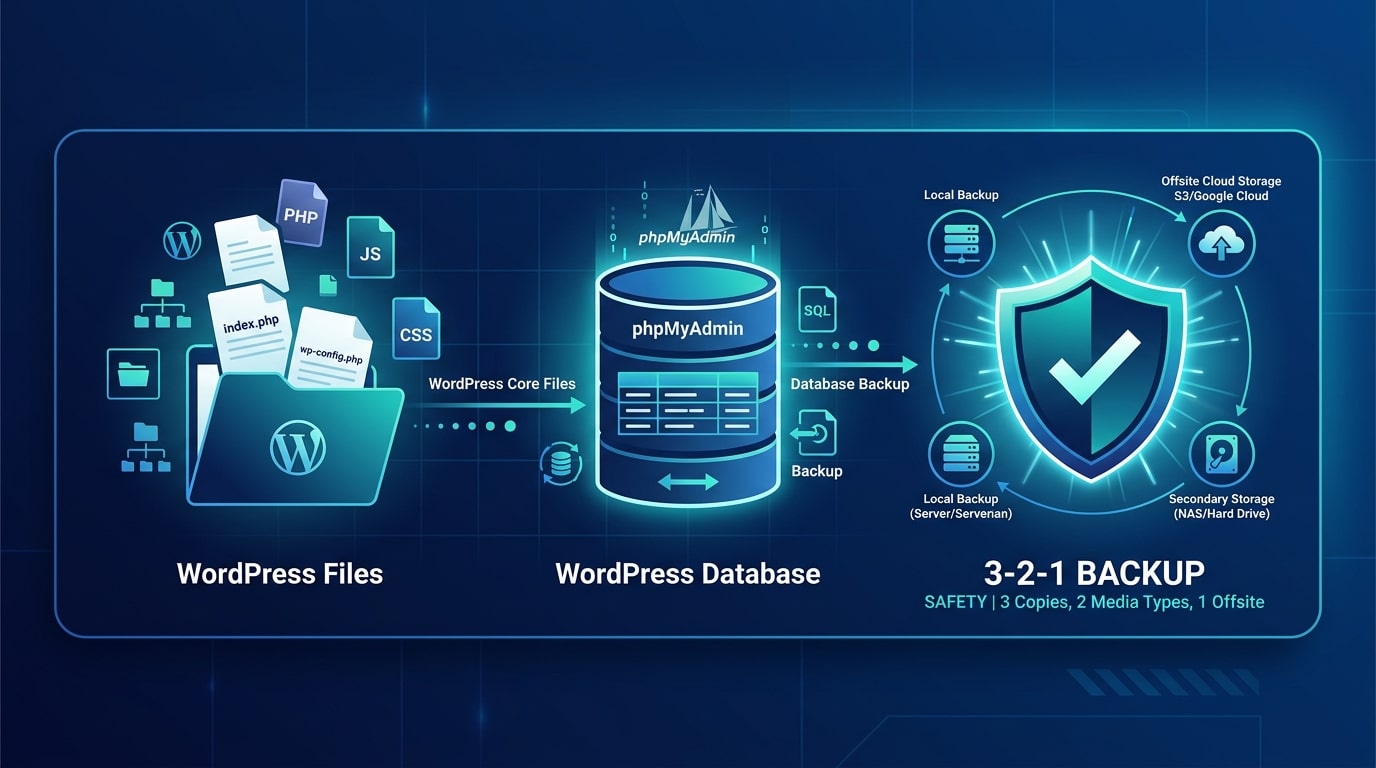
WordPress itself consists of about 3,000 files. As you maintain your WordPress website and add content over time, it will grow in size very quickly. To create a complete backup of all your files, it’s best to use FTP. Depending on your internet connection, this may take a while, but it’s comprehensive. And this manual method is very reliable.
You can use plugins for this, but as soon as you want to store the data externally—that is, outside your hosting package—you’ll usually need to purchase the premium option. A worthwhile investment for many businesses. For a hobby website, however, this might not always fit the budget.
To still ensure that your WordPress website is secure, you’ll need to dedicate the time and discipline to back up your website yourself. You can do this by logging in via FTP or SSH on Linux. Then navigate to the “wwwroot” folder on our Windows hosting or to “htdocs -> domain name” on our Linux web hosting.
Next, copy the entire contents to a folder on your PC. Make sure to do this in a separate folder. Otherwise, confusion may arise.
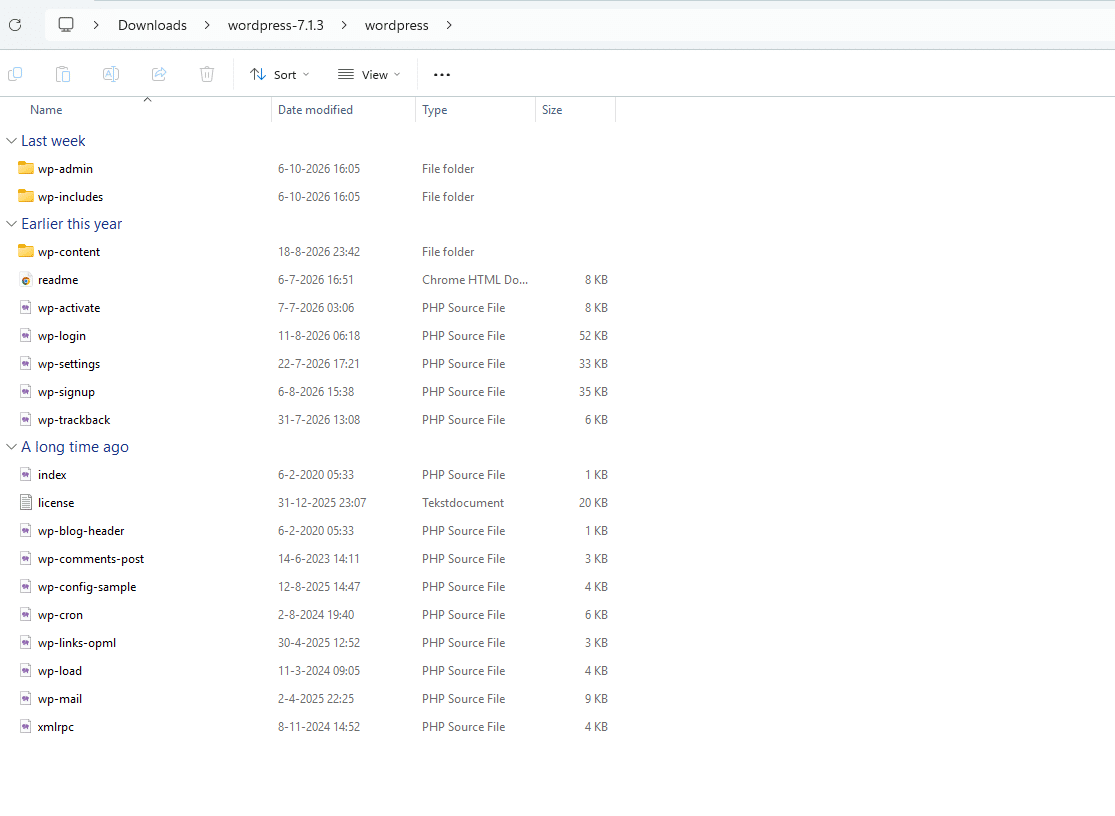
Your “wp-config.php” file and the “wp-content” folder are particularly important. These are essentially what make your website unique and must be backed up under all circumstances. In theory, you can completely replace the remaining files and folders with a standard WordPress installation. This approach is often used to manually update WordPress to the latest version or to restore it after a hacker attack.
The Database
The database behind a WordPress website is indispensable—without it, all your data will be lost. It is therefore just as important as the website files themselves. The easiest way to back up your database is via phpMyAdmin. Since you’ve just downloaded your wp-config.php file, you can open it and navigate to the database connection details. You can then use these to log in to phpMyAdmin and export the database to an .sql file.
Afterward, it’s a good idea to compress the files and the database into a ZIP file. First, this takes up less storage space overall. And second, it makes it easier and more organized to move everything in a single step.
Creating and Storing Backups—The Rule of Three
A single backup isn’t really a backup. To truly protect yourself against data loss, it’s best to follow the well-known 3-2-1 rule: Make sure you have at least 3 copies of your data, stored on 2 different storage media, with at least 1 copy kept at an external (offsite) location. By saving your ZIP file both locally on your computer and in an external cloud environment or on a separate hard drive, you meet this gold standard and are prepared for virtually any disaster scenario.
Don’t have the time or inclination to do this manually yourself?
Manually creating backups via FTP and phpMyAdmin requires time, discipline, and care. Would you like to completely offload this task so you never have to worry about it again? Then take advantage of our 120-day backup service at MijnHostingPartner.nl. We’ll handle the entire process for you and automatically store reliable backups so that your website and all your hard work are always safe. Check out our hosting packages and discover how we can help you!